







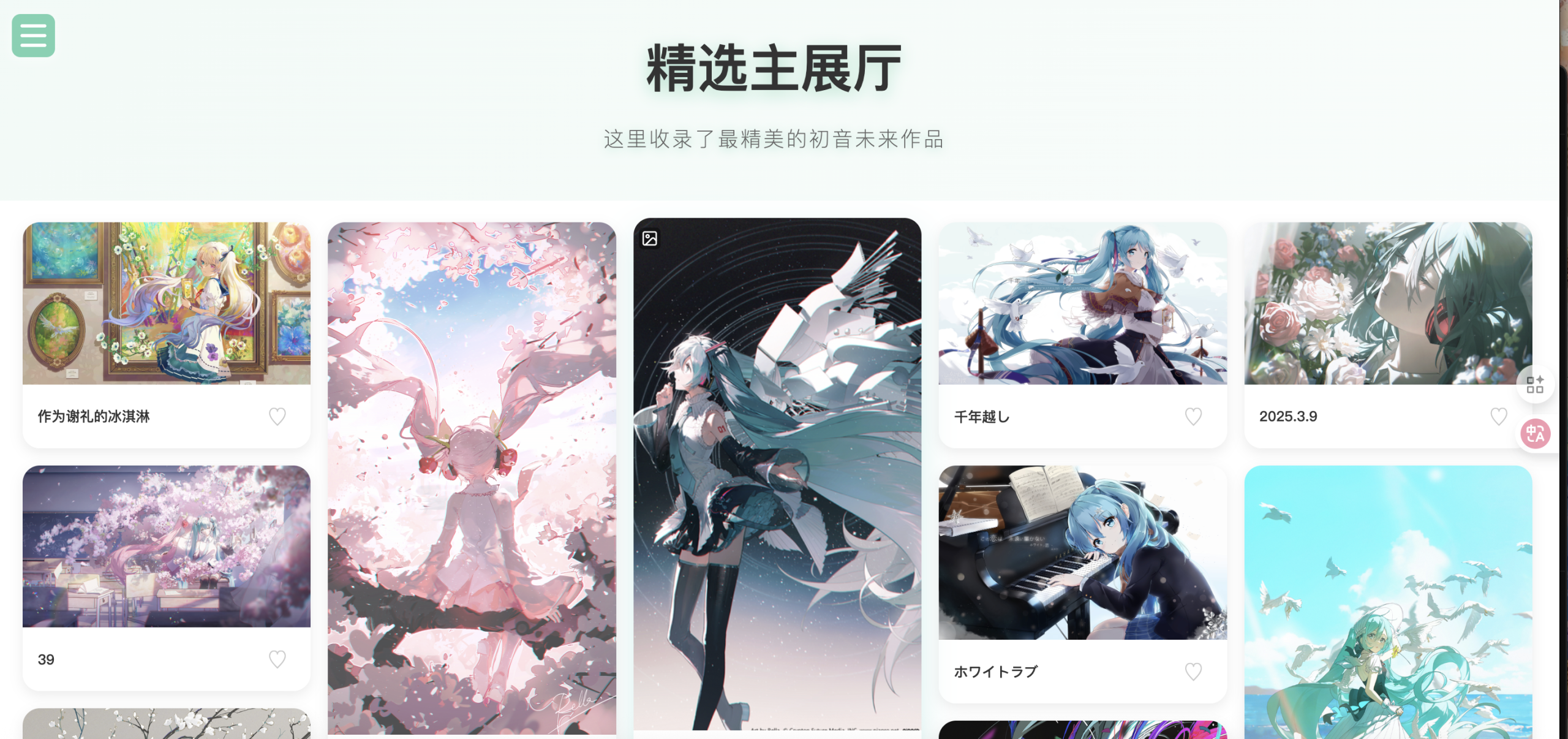
前言 最近在编写我的web大作业的画廊页面。最开始是把图片强行裁剪成正方形,感觉失去了灵魂。 我想要一种像 Pixiv 或 Pinterest 那样的瀑布流布局 (Masonry Layout):图片宽度固定,高度自适应,错落有致。 研究了一圈,发现用纯 CSS 的
column-count就能完美实现,配合一点原生 JS 就能搞定预览和点赞。今天就来分享一下我是怎么“手搓”这个功能的。
最终效果目标
- 瀑布流排版:多列布局,图片保持原始比例,不被裁切。
- 响应式适配:从手机的双列到大屏的五列,丝滑切换。
- 交互体验:卡片悬停上浮、爱心点赞切换、点击查看大图 (Lightbox)。
-
深色模式:自动适配夜间浏览,保护视力。
第一步:HTML 结构设计
首先,我们需要一个清晰的容器结构。这里我采用了“容器 + 卡片”的包裹模式。
<div class="gallery-container">
<div class="gallery-item">
<div class="image-wrapper">
<img src="path/to/miku.jpg" alt="Miku Image">
</div>
<div class="item-info">
<span class="item-title">世界第一公主殿下</span>
<button class="like-btn">♡</button>
</div>
</div>
</div>
<div id="lightbox" class="lightbox">
<span class="close-btn">×</span>
<img id="lightbox-img" src="">
</div>第二步:CSS 核心布局 (Magic Time)
这是实现瀑布流最关键的一步。很多教程建议用 JS 计算位置,但其实 CSS 的 Multi-column 属性 才是最轻量级的解法。
1. 开启瀑布流
我们在容器上定义列数 (column-count) 和列间距 (column-gap)。
.gallery-container {
    width: 100%;
    max-width: 1400px;
    margin: 0 auto;
    padding: 20px 30px 80px;

    /* 核心代码:5列布局,间距16px */
    column-count: 5;
    column-gap: 16px;
}
2. 防止卡片断裂
默认情况下,多列布局可能会把一个元素从中间“切开”放到下一列。我们需要给卡片加上 break-inside: avoid。
.gallery-item {
    break-inside: avoid;  /* 关键:防止卡片被分割到多列 */
    margin-bottom: 16px;  /* 卡片垂直间距 */
    background: #fff;
    border-radius: 16px;
    overflow: hidden;

    /* 加上一点阴影让它浮起来 */
    box-shadow: 0 4px 12px rgba(0, 0, 0, 0.08);
    transition: transform 0.3s ease, box-shadow 0.3s ease;
}

/* 既然是 Miku 主题,悬停时来点初音绿的辉光 */
.gallery-item:hover {
    transform: translateY(-4px);
    box-shadow: 0 12px 30px rgba(57, 197, 187, 0.25);
}
3. 响应式断点
为了在不同设备上都有完美的体验,我设置了多个断点来调整列数:
- PC 大屏: 5列
- 笔记本: 4列
- 平板: 3列
- 手机: 2列
@media (max-width: 1200px) { .gallery-container { column-count: 4; } }
@media (max-width: 991px)  { .gallery-container { column-count: 3; } }
@media (max-width: 767px)  { .gallery-container { column-count: 2; } }
第三步:原生 JS 实现交互
我不喜欢为了一个小小的“点击放大”功能就引入 jQuery 或其他插件。手写一段原生 JS 其实非常简单。
1. 爱心点赞功能
利用 classList.toggle 切换类名,顺便改变文字内容(实心心/空心心)。
const likeBtn = item.querySelector('.like-btn');

likeBtn.addEventListener('click', (e) => {
    e.stopPropagation(); // 防止冒泡触发查看大图
    likeBtn.classList.toggle('liked');

    // 切换视觉符号
    likeBtn.textContent = likeBtn.classList.contains('liked') ? '♥' : '♡';
});
2. Lightbox (大图查看)
逻辑很简单:点击图片 -> 获取 src -> 赋给遮罩层里的 img -> 显示遮罩层。
// 点击打开
imageWrapper.addEventListener('click', (e) => {
    e.stopPropagation();
    lightboxImg.src = img.src;
    lightbox.classList.add('active');
    document.body.style.overflow = 'hidden'; // 禁止背景滚动
});

// 点击关闭 (支持点击背景、关闭按钮、ESC键)
const closeLightbox = () => {
    lightbox.classList.remove('active');
    document.body.style.overflow = '';
    // 延迟清空 src,防止关闭动画时图片突然消失
    setTimeout(() => { lightboxImg.src = ''; }, 300);
}
细节打磨:深色模式
作为一名注重体验的开发者,Dark Mode 是必须的。利用 body.dark-mode 类名,我们可以轻松重写变量。
body.dark-mode .gallery-item {
    background: #2a2a2a; /* 深灰背景 */
    box-shadow: 0 4px 12px rgba(0, 0, 0, 0.3);
}

body.dark-mode .item-title {
    color: rgba(255, 255, 255, 0.9);
}
演示代码
你可以直接把下面这段代码保存为 index.html 然后用浏览器打开!
<!DOCTYPE html>
<html lang="zh-CN">
<head>
<meta charset="UTF-8">
<meta name="viewport" content="width=device-width, initial-scale=1.0">
<title>Miku Style Gallery Demo</title>
<style>
/* ================== 基础变量与重置 ================== */
:root {
/* 初音未来主题色 */
--miku-color: #39c5bb;
--miku-color-rgb: 57, 197, 187;
--bg-color: #f5f7fa;
--text-color: #333;
}
body {
margin: 0;
padding: 0;
font-family: 'Segoe UI', Roboto, Helvetica, Arial, sans-serif;
background-color: var(--bg-color);
color: var(--text-color);
transition: background-color 0.3s, color 0.3s;
}
/* 演示用的深色模式切换按钮 */
.theme-toggle {
position: fixed;
top: 20px;
right: 20px;
z-index: 100;
padding: 8px 16px;
background: var(--miku-color);
color: white;
border: none;
border-radius: 20px;
cursor: pointer;
box-shadow: 0 2px 10px rgba(57, 197, 187, 0.4);
}
/* ================== 你的 Gallery CSS 代码 ================== */
/* 简化版顶部横幅 */
.hero-banner-simple {
padding: 80px 20px 40px;
text-align: center;
background: linear-gradient(135deg,
rgba(var(--miku-color-rgb), 0.1) 0%,
rgba(var(--miku-color-rgb), 0.05) 100%);
}
.hero-content-simple {
max-width: 800px;
margin: 0 auto;
}
.hero-banner-simple .hero-title {
font-size: 3rem;
margin: 0 0 15px 0;
color: var(--text-color);
}
.hero-banner-simple .hero-subtitle {
font-size: 1.2rem;
color: #666;
margin: 0;
font-weight: 300;
}
/* --- 画廊容器 - 多列瀑布流布局 --- */
.gallery-container {
width: 100%;
max-width: 1400px;
margin: 0 auto;
padding: 20px 30px 80px;
box-sizing: border-box;
/* 多列布局 - 类似瀑布流效果 */
column-count: 5;
column-gap: 16px;
}
/* --- 图片卡片样式 --- */
.gallery-item {
break-inside: avoid; /* 防止卡片被分割到多列 */
margin-bottom: 16px;
border-radius: 16px;
overflow: hidden;
background: #fff;
cursor: pointer;
box-shadow: 0 4px 12px rgba(0, 0, 0, 0.08);
transition: transform 0.3s ease, box-shadow 0.3s ease;
}
.gallery-item:hover {
transform: translateY(-4px);
box-shadow: 0 12px 30px rgba(57, 197, 187, 0.25);
}
/* 图片包装器 */
.image-wrapper {
position: relative;
overflow: hidden;
border-radius: 16px 16px 0 0;
background-color: #eee; /* 图片加载前的占位色 */
}
.gallery-item img {
width: 100%;
height: auto; /* 保持图片原始比例 */
display: block;
transition: transform 0.4s ease;
}
.gallery-item:hover img {
transform: scale(1.05);
}
/* --- 图片信息区域(标题 + 爱心按钮)--- */
.item-info {
display: flex;
justify-content: space-between;
align-items: center;
padding: 12px 14px;
background: #fff;
transition: background 0.3s;
}
.item-title {
color: #333;
font-size: 13px;
font-weight: 500;
white-space: nowrap;
overflow: hidden;
text-overflow: ellipsis;
flex: 1;
margin-right: 10px;
}
/* 爱心按钮 */
.like-btn {
background: none;
border: none;
color: #ccc;
font-size: 18px;
cursor: pointer;
padding: 4px 8px;
transition: all 0.2s ease;
border-radius: 50%;
}
.like-btn:hover {
color: #ff6b9d;
transform: scale(1.15);
}
.like-btn.liked {
color: #ff6b9d;
}
/* --- 点击放大 (Lightbox) 样式 --- */
.lightbox {
position: fixed;
top: 0;
left: 0;
width: 100%;
height: 100%;
background: rgba(0, 0, 0, 0.92);
backdrop-filter: blur(8px);
display: none;
justify-content: center;
align-items: center;
z-index: 10000;
opacity: 0;
transition: opacity 0.3s ease;
}
.lightbox.active {
display: flex;
opacity: 1;
}
.lightbox img {
max-width: 90%;
max-height: 90%;
border-radius: 8px;
box-shadow: 0 0 20px rgba(57, 197, 187, 0.5);
transform: scale(0.9);
transition: transform 0.3s ease;
}
.lightbox.active img {
transform: scale(1);
}
.close-btn {
position: absolute;
top: 30px;
right: 40px;
color: white;
font-size: 40px;
cursor: pointer;
transition: color 0.3s, transform 0.3s;
z-index: 10001;
font-family: Arial, sans-serif;
line-height: 1;
}
.close-btn:hover {
transform: rotate(90deg);
color: var(--miku-color);
}
/* ========== 响应式设计 ========== */
@media (min-width: 1200px) { .gallery-container { column-count: 5; } }
@media (min-width: 992px) and (max-width: 1199px) { .gallery-container { column-count: 4; } }
@media (min-width: 768px) and (max-width: 991px) {
.gallery-container { column-count: 3; padding: 20px 20px 60px; }
.hero-banner-simple .hero-title { font-size: 2.5rem; }
}
@media (min-width: 481px) and (max-width: 767px) {
.gallery-container { column-count: 2; column-gap: 12px; padding: 15px 15px 50px; }
.gallery-item { margin-bottom: 12px; border-radius: 12px; }
}
@media (max-width: 480px) {
.gallery-container { column-count: 2; column-gap: 10px; padding: 10px 10px 50px; }
.gallery-item { margin-bottom: 10px; border-radius: 10px; }
}
/* ========== 深色模式支持 ========== */
body.dark-mode {
--bg-color: #1a1a1a;
--text-color: #e0e0e0;
}
body.dark-mode .hero-banner-simple {
background: linear-gradient(135deg,
rgba(var(--miku-color-rgb), 0.15) 0%,
rgba(0, 0, 0, 0.1) 100%);
}
body.dark-mode .hero-banner-simple .hero-subtitle { color: #b0b0b0; }
body.dark-mode .gallery-item {
background: #2a2a2a;
box-shadow: 0 4px 12px rgba(0, 0, 0, 0.3);
}
body.dark-mode .gallery-item:hover {
box-shadow: 0 12px 30px rgba(var(--miku-color-rgb), 0.4);
}
body.dark-mode .item-info { background: #2a2a2a; }
body.dark-mode .item-title { color: rgba(255, 255, 255, 0.9); }
body.dark-mode .like-btn { color: rgba(255, 255, 255, 0.5); }
</style>
</head>
<body>
<button class="theme-toggle" onclick="document.body.classList.toggle('dark-mode')">
Toggle Dark Mode
</button>
<div class="hero-banner-simple">
<div class="hero-content-simple">
<h1 class="hero-title">Miku's Gallery</h1>
<p class="hero-subtitle">手搓瀑布流布局演示 (Pure CSS Masonry)</p>
</div>
</div>
<div class="gallery-container" id="gallery-container">
</div>
<div id="lightbox" class="lightbox">
<span class="close-btn">×</span>
<img id="lightbox-img" src="" alt="Full size preview">
</div>
<script>
// ================== 1. 模拟数据生成 ==================
// 为了演示方便,我们生成一些随机高度的图片数据
const mockData = [
{ h: 600, title: "初音未来 01" },
{ h: 400, title: "葱色双马尾" },
{ h: 800, title: "演唱会现场" },
{ h: 500, title: "未来有你" },
{ h: 700, title: "魔法未来 2024" },
{ h: 450, title: "雪初音" },
{ h: 650, title: "樱初音" },
{ h: 550, title: "赛车初音" },
{ h: 300, title: "Q版 Miku" },
{ h: 750, title: "Project DIVA" },
{ h: 400, title: "Vocaloid" },
{ h: 600, title: "39 Thanks" },
{ h: 500, title: "电子歌姬" },
{ h: 850, title: "World is Mine" },
{ h: 450, title: "Tell Your World" }
];
const container = document.getElementById('gallery-container');
// 渲染 HTML
mockData.forEach((item, index) => {
// 使用 placehold.co 生成不同比例的占位图
const imgSrc = `https://placehold.co/400x${item.h}/39c5bb/ffffff?text=Miku+${index+1}`;
const html = `
<div class="gallery-item">
<div class="image-wrapper">
<img src="${imgSrc}" loading="lazy" alt="${item.title}">
</div>
<div class="item-info">
<span class="item-title">${item.title}</span>
<button class="like-btn">♡</button>
</div>
</div>
`;
container.insertAdjacentHTML('beforeend', html);
});
// ================== 2. 你的 Gallery JS 逻辑 ==================
document.addEventListener('DOMContentLoaded', function() {
// 获取元素
const galleryItems = document.querySelectorAll('.gallery-item');
const lightbox = document.getElementById('lightbox');
const lightboxImg = document.getElementById('lightbox-img');
const closeBtn = document.querySelector('.close-btn');
if (!lightbox || !lightboxImg || !closeBtn) return;
// 给每个图片卡片添加点击事件
galleryItems.forEach(item => {
const img = item.querySelector('img');
const imageWrapper = item.querySelector('.image-wrapper');
const likeBtn = item.querySelector('.like-btn');
// 点击图片区域 -> 打开大图
if (imageWrapper && img) {
imageWrapper.addEventListener('click', (e) => {
e.stopPropagation();
lightboxImg.src = img.src;
lightbox.classList.add('active');
document.body.style.overflow = 'hidden';
});
}
// 点击爱心按钮 -> 切换喜欢状态
if (likeBtn) {
likeBtn.addEventListener('click', (e) => {
e.stopPropagation();
likeBtn.classList.toggle('liked');
if (likeBtn.classList.contains('liked')) {
likeBtn.textContent = '♥';
} else {
likeBtn.textContent = '♡';
}
});
}
});
// 关闭功能的函数
const closeLightbox = () => {
lightbox.classList.remove('active');
document.body.style.overflow = '';
setTimeout(() => { lightboxImg.src = ''; }, 300);
}
// 点击关闭按钮
closeBtn.addEventListener('click', (e) => {
e.stopPropagation();
closeLightbox();
});
// 点击黑色背景区域也能关闭
lightbox.addEventListener('click', (e) => {
if (e.target === lightbox) {
closeLightbox();
}
});
// 按 ESC 键关闭
document.addEventListener('keydown', (e) => {
if (e.key === 'Escape' && lightbox.classList.contains('active')) {
e.stopPropagation();
closeLightbox();
}
});
});
</script>
</body>
</html>总结
通过这次重构,我们不仅移除了外部依赖,让页面加载更快,还完全掌控了布局的每一个像素。
最终成果特点:
- CSS Only 布局:利用
column-count实现高性能瀑布流。 - Zero Dependency:纯原生 JS,无任何框架负担。
- Miku Style:保留了主题色的呼吸感和交互细节。
写代码最开心的时刻,莫过于看着自己手搓的功能完美运行在页面上的那一刻呀!✨
Comments NOTHING